Getting started
Warning
As of today, HappyFeat requires OpenViBE 3.6.0 or Timeflux to run.
First time?
We recommend the tutorial page, which will guide you step-by-step through the setup.
Launch the application
If you installed from PyPI, launch HappyFeat using this command:
happyfeat
If you cloned the repository from github, the application's entry point is the Python script happyfeat_welcome.py. Navigate to the cloned repo and type the following:
python -m happyfeat/happyfeat_welcome
python
>>> from happyfeat import happyfeat_welcome
>>> happyfeat_welcome.main()
A GUI is displayed, allowing to select a workspace. You can browse for the location of your choice, choose from a list of existing workspaces, or create a new one.
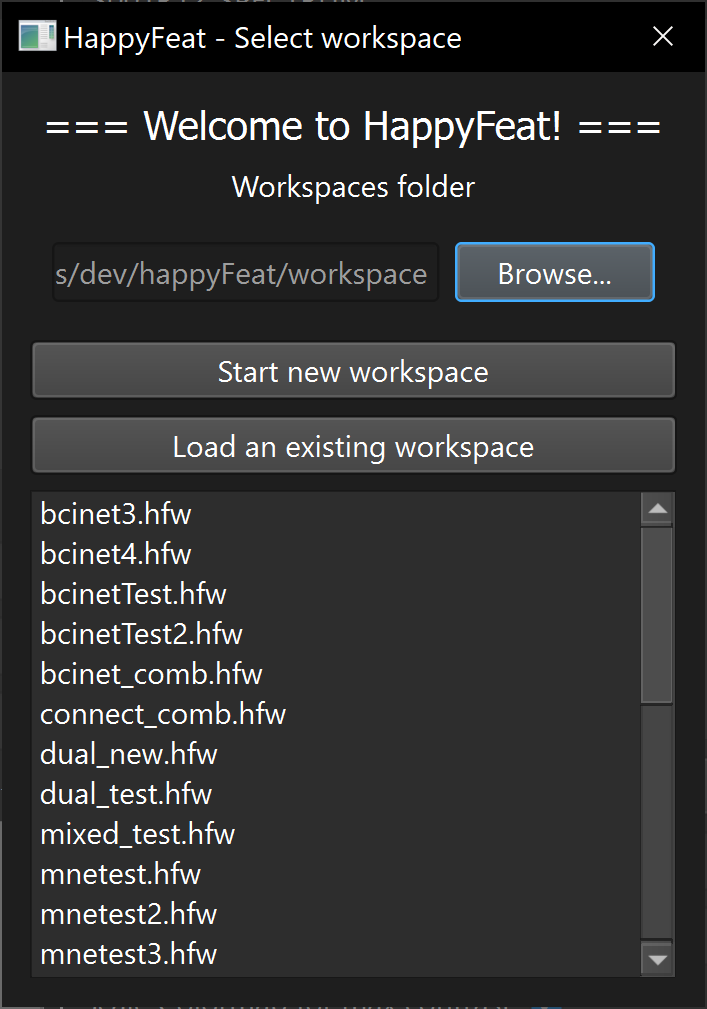
Setting up the workspaces location
First, browse for the folder in which you would like HappyFeat to create and look for workspaces. This will be saved for future launches of happyfeat_welcome, but you may change if necessary.
Setting up a new workspace
Click on "Start new workspace" and enter a name for your workspace. A new assistant GUI will open, allowing you to set up the BCI experiment parameters.
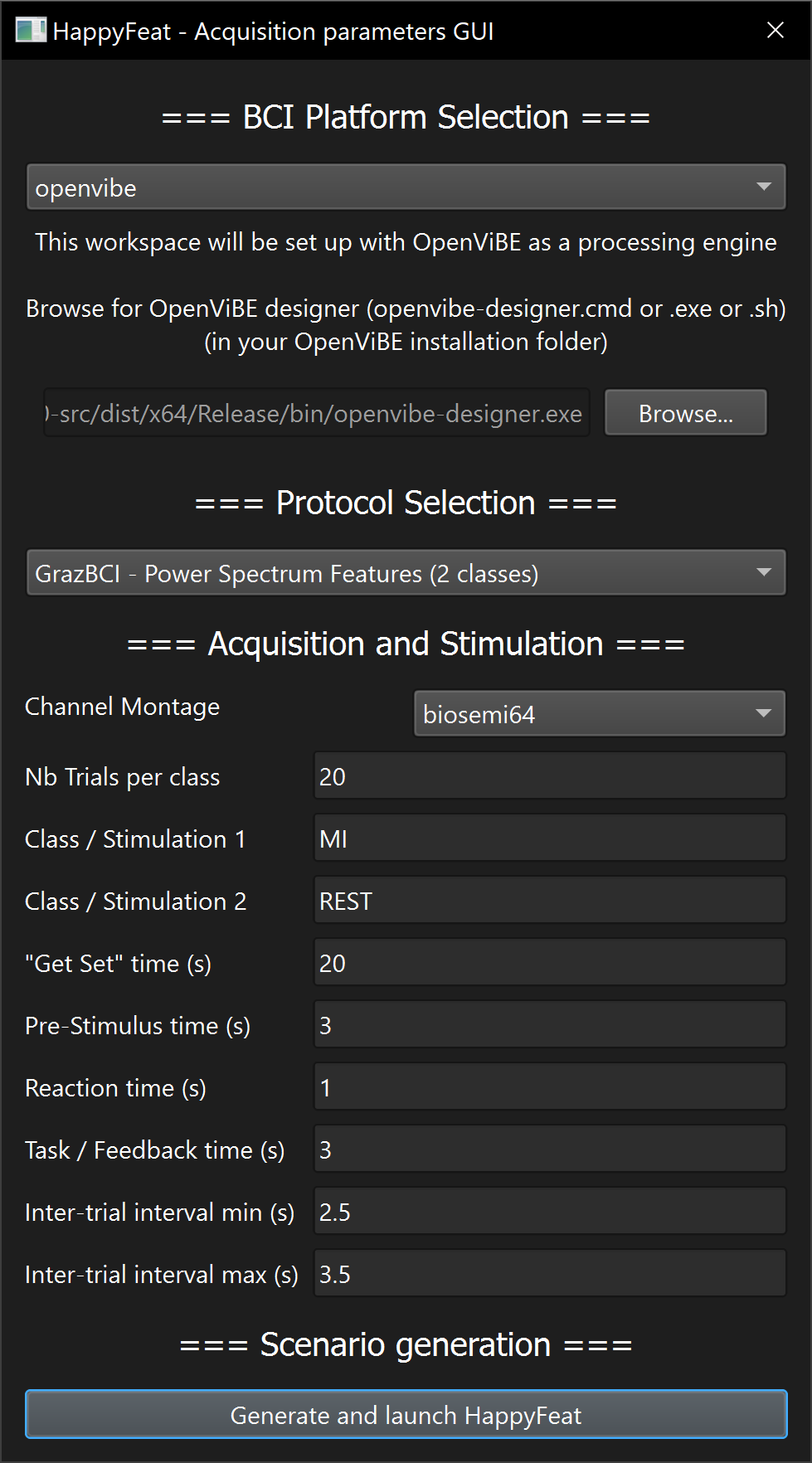
In the "BCI Platform" drop-down menu, select which BCI software you want to use for processing the EEG data (OpenViBE or Timeflux).
-
If you select Timeflux, make sure the
timefluxandtimeflux_dsppackages are installed in your environment. -
If you select OpenViBE, you also need to browse for the OpenViBE designer application on your computer (either the .exe, .sh or .cmd file).
In the "Protocol Selection" drop-down menu, select the metric(s)/feature(s) you want to work with (eg: Power Spectrum based classification). As of today, you can choose between Power Spectral Density, Connectivity-based Node Strength, or mixing both.
Then, enter the parameters for your experiment: Number of trials, trial length, etc.
You can either use known channel montages (e.g. standard 1020) or a custom montage. See the specific page on montages for more information.
Click on Generate scenarios & Launch HappyFeat when you're ready.
From there on, files & folders will be located in the <workspacesFolder>/<myworkspacename> folder,
and all information and configuration will be managed in the <workspacesFolder>/<myworkspacename>.hfw file.
Loading an existing workspace
You can find the list of existing workspaces in the happyfeat_welcome.py GUI. Browse for the folder <workspacesFolder> of your choice on your computer, then select a workspace in the list and click on "Load existing workspace". All previously handled parameters, results, and working files are loaded.
Note that workspaces can be shared from one computer to another, by simply copying the workspace's folder and configuration file.